MyPortal Guide: How to Update Profile and Team [Video]
About the MyPortal Guide to Updating Profile and Team
Learn how to update your profile and manage loan document teams with this DossDocs MyPortal video guide. Streamline collaboration and access for efficient loan document workflows.
Video Transcript
Introduction to MyPortal [00:04]
Hi, this is Aletha Nelson. Today, I’ll show you how to update your profile and team information in DossDocs MyPortal to enhance your loan document management.
Dashboard Overview [00:25]
After generating multiple document sets, your Dashboard will display your workflows. This central hub allows easy access to all deal flow.
Updating Profile [01:10]
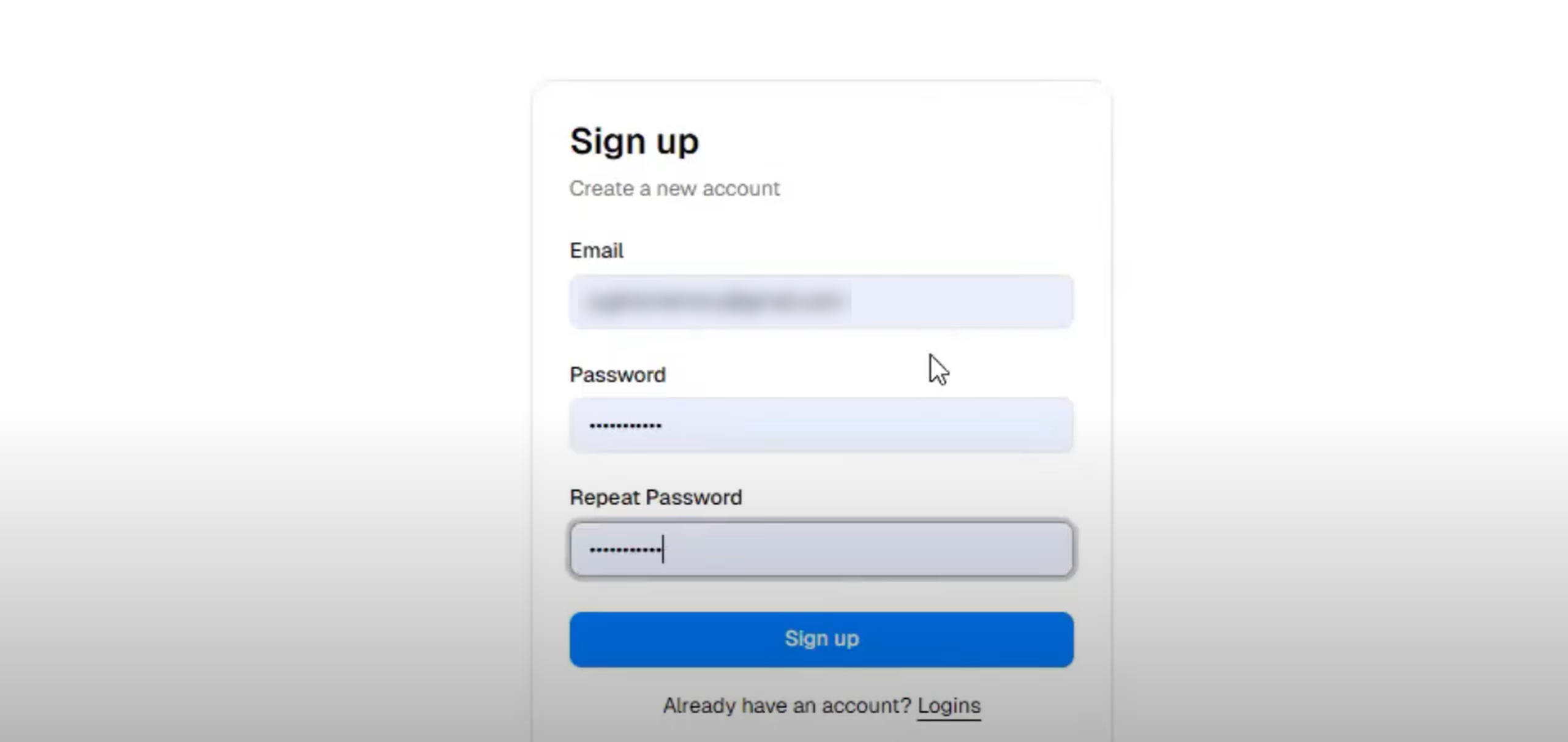
To update your profile and settings, click the icon to the left of the Dashboard. You’ll see options for Dashboard, Presets, Profile, and Team. Select “Profile” to modify your name, email, and password for secure loan document access.
Creating and Managing Team [01:31]
To create your team, select the Team icon and click “Invite User.” This is ideal for processors, doc drawers, or multiple team members handling loan documents. Invite anyone who needs access to your Dashboard and deal flow. Once they accept, their details appear in the portal for easy management.
Team Collaboration Benefits [01:49]
Invited users can collaborate on loan document workflows. Modify team details as needed to ensure smooth team management and efficient deal processing.
Closing and Support [02:22]
That’s how you update your profile and invite team members in MyPortal. Let us know if you have any questions about loan document team management.
Got a loan that needs docs?
Get 50-state, attorney-quality, compliant documents in minutes.
No contract. No subscription or upfront cost. One simple click for instant access.
Full TRID compliant docs – including the LE and CD
DocuSign active on the Consumer Bridge Loan Estimate
11-month max term (11 months plus per diem interest period)
All federal and state disclosures for DRE and CFL licensees
Flexibility to put a lien on the existing home, new home or both
HOEPA compliance
3 Day Right to Cancel if placing a lien on the existing residence
All calculations performed – including APR and TIP
Special customizable escrow instructions to the purchase escrow
NMLS endorsement required
Ability to repay & credit not relevant
No prepayment penalties or guaranteed interest
Most are Section 32 = HUD counseling & no financing of soft fees
4%, 15-day late charge
No limitation on rates or points
Business Purpose Construction Loan Docs Features
Business purpose residential or commercial real estate
1 or 2 borrowers
1 or 2 properties in the same county
1st, 2nd, 3rd or 4th lien priority for each property
Borrowers can be natural persons, entities, trusts or any combination
Full signature blocks
Full closing instructions
Can be used by broker or lender, CFL, DRE, CRMLA, state licensed or exempt
Referral fee and co-broker options
Up to 4 guarantors
Fixed or adjustable rate provisions
Default rate option
Impounds option
Extension option with choice of conditions
Line of credit option
Mortgage Loan Disclosure Statement for every state
DocuSign active on all early disclosure documents
CFL disclosure for CFL lenders
Comprehensive loan agreement
Comprehensive guaranty
Comprehensive environmental indemnity for commercial loans
Holdback option
DSCR option
Capital reserve option
Debt service reserve option
Interest reserve option
Guaranteed interest option
Prepayment penalty option
Amortized or interest only
Business purpose certificate
Non-owner occupancy declaration
Choice of title endorsements
Ability to add custom clauses or addenda to closing instructions, note, security instrument and loan agreement
Up to 6 payoffs
Many, many varieties of lender and broker fees
Cannabis clauses
PACE and HERO clauses
Multi-lender or single lender friendly
Comprehensive entity consent, LLC, GP, Corp.
Certification of trust for trust borrowers
Broker Investor Package Features
50 States
Complete set of investor docs and disclosures for brokers
Lender/Purchaser Disclosure Statement (up to 10 investors)
Investor Questionnaire
Loan Sale and Servicing Agreement
IRS W-9.
The application generates a separate set for each investor
Business Purpose Loan Docs Features
Instant loan docs with unlimited, free redraws on the same transaction
50 state coverage (lender state governs choice of law except security instrument)
Secured by residential, multi-family or commercial real estate
Up to 2 borrowers of ANY type (full signature blocks, not blanks)
Up to 2 properties cross-collateralized within any state or between any two states
Up to 4 guarantors
1st or junior liens
Pre-Maturity Default Compensation Options
Reports Feature to save all of your data for any year end reports to regulators or for internal use
Balloon or amortized, up to 3 payment sequences
Fixed or adjustable (multiple benchmarks to choose from)
Closed-end or Line of Credit
Guaranteed Interest feature
Multiple prepay options such as 5-4-3-2-1 etc.
Full closing instructions with choice of endorsements, exceptions and title insurance amounts
Mortgage Loan Disclosure Statement, including new multi-state form (picks the right form and does all the math)
Interest reserves and holdback
Co-Broker and Referral Fees
Grace Period and Late Charge Percentages
Exit Fee feature
Appraisal Rebalance Option
“Bad Boy” Guaranty option
Special Purpose Entity (“SPE”) option
Non-Borrower Security Instrument Signer
Multitude of fees plus custom fees can be input
Ability to add custom clauses to note, security instrument, loan agreement and closing instructions
PACE and HERO clauses
Entity Authorization (Minutes)
Cannabis clauses
Extension options
Letter to senior lender for junior loans
Debt Service Coverage Ratio, Capital Reserve, Debt Service Reserve options
Full disclosures and common forms such as Loan Agreement, CFL, Fair Lending, Compliance Agreement, ECOA, Balloon Notice, Declaration of Non-Owner Occupancy, Business Purpose Declaration, Patriot Act, Arbitration, Environmental Indemnity (commercial), Trust Certification for trust loans